Explore your Gemini Voice Remote
Key Differences in the Genie and Gemini Remotes
The Gemini Voice remote works exclusively with the Gemini device and supports voice commands powered by Google Assistant.
Below are the main button differences, plus pairing and troubleshooting tips.
Quick Note
You can add photos under each item below to match what users see on their remotes.
Video Walkthrough
Button Differences
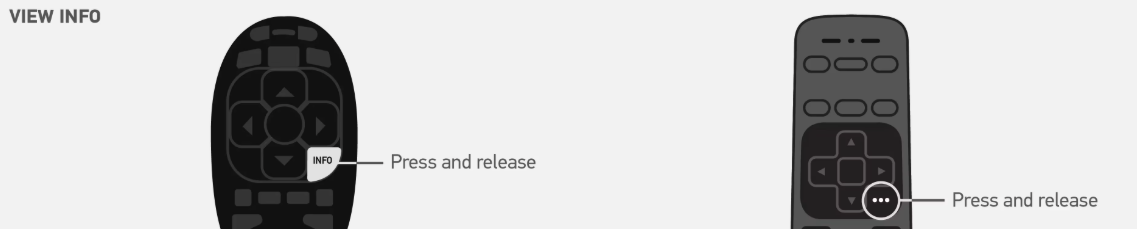
INFO is replaced by Ellipsis (…)
On the Gemini remote, the Genie INFO button is replaced by the Ellipsis (… ) button.
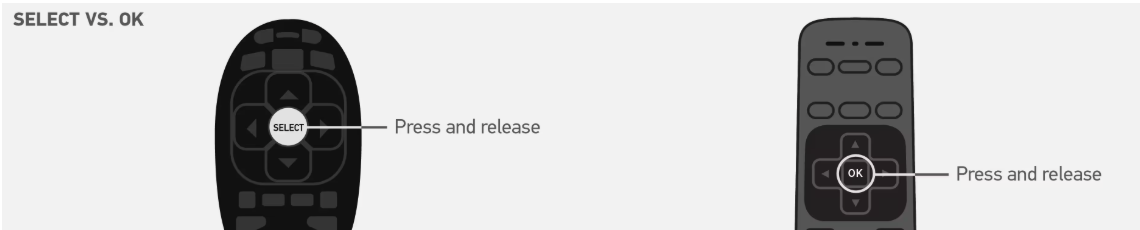
SELECT is replaced by OK
On the Gemini remote, the Genie SELECT button is replaced by the OK button.
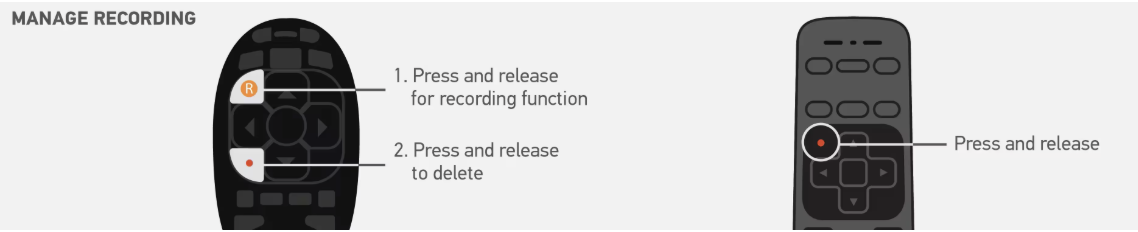
R button is not available
The Gemini remote does not have an R button. The Red Dot button is used for recording options.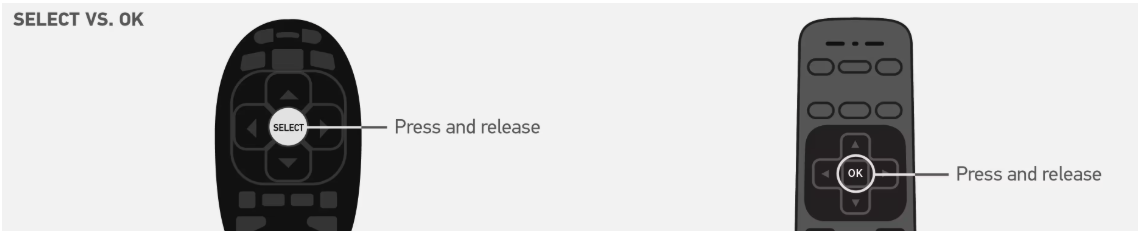
Interactive Channel Apps
For interactive channel apps, the Red Dot button on the Genie remote is replaced by the OK button on the Gemini remote.
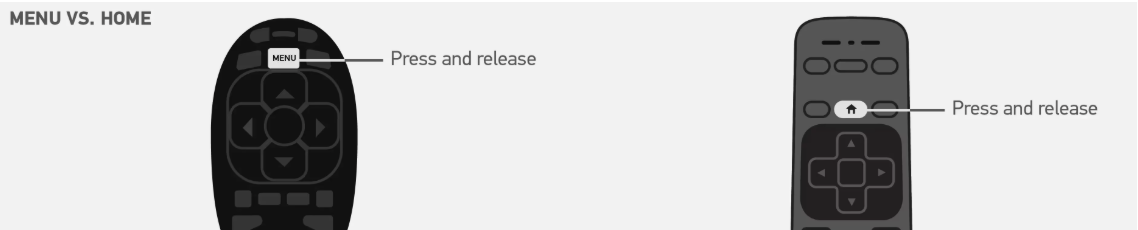
MENU is replaced by HOME
On the Gemini remote, the Genie MENU button is replaced by the HOME button.
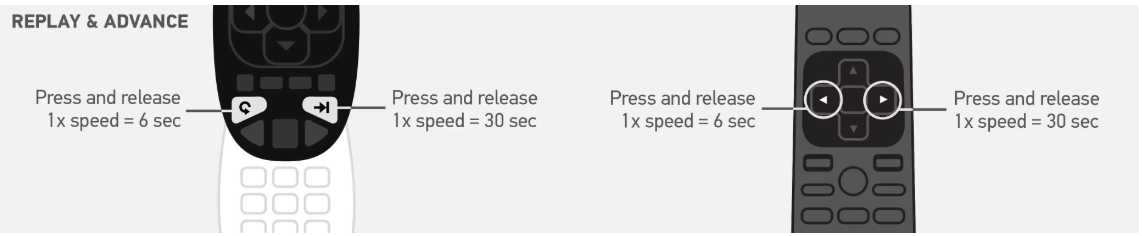
Replay and Advance options
Replay and Advance functions differ between remotes depending on the model and interface.
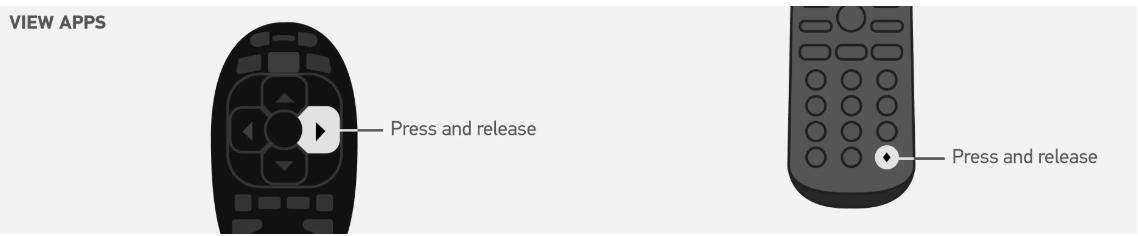
Apps access
Third party apps can be launched from the APPS button. DIRECTV interactive apps such as ScoreGuide are accessed via their channel.
Mini guide shortcut
To launch the mini guide, ENTER is replaced by 0 on the Gemini remote.
Remote Pairing and Connection Refresh
This fixes a lot of “remote not responding” issues
Refreshing the connection between your remote and Gemini device resolves many common problems.
Step 1 Unpair the remote
- Press and hold the DASH and APPS buttons until the LED blinks blue 2 times.
Step 2 Restart the Gemini device
- Press and release the red button on the side of the Gemini device.
- Or unplug the device and plug it back in.
Step 3 Pair the remote again
- Point the remote at your Gemini device.
- Press and hold FAST FORWARD and REWIND at the same time for 2 to 3 seconds.
- When paired, you will see an on screen message that your remote is ready to use.
Control a Sound Bar
You can program your Gemini Voice remote to control a TV or sound bar.
- Press the Home button on your Gemini Voice remote.
- Select Settings, then System.
- Choose Remote and Devices, then Program Your Remote.
- Select the TV manufacturer or sound bar you want to add.
- Follow the prompts to complete setup.
Battery Check
Quick Battery Reset
Remove the batteries for a few seconds, then put them back in. If the remote still does not respond, swap in a fresh set of batteries.